精選

顯示具有 vlc 標籤的文章。 顯示所有文章

2020年6月27日 星期六

我的VLC用途

220508 原標題"用VLC看nas最方便"改此,集中之前相關筆記在此。新增以0x標示

260817 更新 02.

02. vlc play midi的最新方法,24.04/26.04可以 (260617)
      sudo apt update 
      sudo apt install vlc-plugin-fluidsynth fluid-soundfont-gm

01. 看手機直播源m3u等
1. 用VLC看nas影音檔最方便
2. 用VLC聽midi及看電視
3. mp4 to mp3, flv to mp3, wav to mp3
4. VLC播放指定時段
5. 用VLC執行影片裁剪最簡單,或Winff及ffmpeg

01. 看手機直播源m3u等(220508)
(220510)手機畫面小不易看,有些源內的m3u台VLC不能看,自行過濾。
在文字檔內單一的m3u→nb由媒体(M)→開啟網路串流(N)→貼入網路串流即可
如是xxx.m3u檔→直接由VLC開啟→檢視(V)→播放清單 (L)
※以上2影片只能用VLC看,用vokoscreenNG錄製。
另可參考我的電視盒Diamond A9在播放器加入源等
參考我的 大通OTT-2100電視盒用IPTV看ETH(240201)

1. 用VLC看nas影音檔最方便 200627
比smba快,各系統皆可,請看我的電視盒Diamond  33.
ubuntu不安裝smba即可直接用vlc看nas影音,並可由此聽音樂
檢示(V)→播放清單(L)→網際網路


看nas影音檔→VLC開啟→檢視(V)→播放清單 (L)→通用隨挿即用服務(UPnP)→如下圖
此例→web輸入→"http://192.168.0.1:8200/MediaItems/203.m4a"即可在web播放,
或單點由VLC播放。


2. 用VLC聽midi及看電視 220324
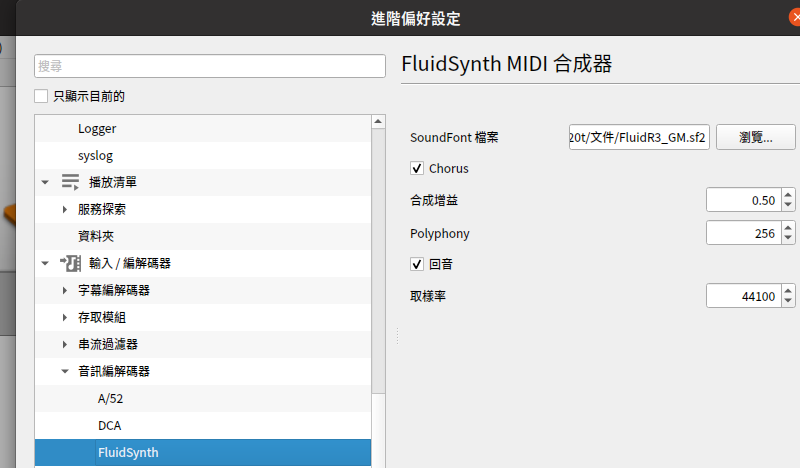
vlc play midi方法更新
20.04 install 
fluid-soundfont-gm_3.1-5.1_all.deb
後再將/usr/share/sounds/sf2/FluidR3_GM.sf2
該.sf2 copy 到/home下任一目錄,再由vlc開mid檔即可播放
180609
改用MuseScore讀取midi

※以下用不到了,僅參考用
130920
在vlc看電視的方法,到http://addons.videolan.org/
在Apps選Internet Channel再選widih tv下載
playlist.m3u後以vlc開啟

Midi
※140426更新 ubuntu 14.04不可安裝,vlc會當掉。

130918
終於找到在vlc聽midi的方法,參考
http://www.mail-archive.com/lubuntu-users@lists.ubuntu.com/msg02350.html
只要Fluidsynth plugin,找Fluidsynth plugin for VLC安裝。

3. mp4 to mp3, flv to mp3, wav to mp3
220521 個人還是用ffmpeg最順,不會指令請由軟体中定安裝gui的Winff。
201219 不再更新,用vlc即可 
140302 mp4 to mp3 用ffmpeg指令
ffmpeg -i video.mp4 -f mp3 -ab 192000 -vn music.mp3

140406flv to mp3
ffmpeg -i fichier.flv -f mp3 -vn -acodec copy fichier.mp3

4. VLC播放指定時段 原011220
vlc播放指定時段,如1分到1分10秒
vlc --start-time=60 --stop-time=70 test.webm 
5. 用VLC執行影片裁剪最簡單 (180712) ,或Winff(220702)及ffmpeg(250219)
google找 Ubuntu 18.04 Linux How to Cut Video Clips using VLC Media Player 
檢視→選取進階控制→播放中按錄影(存到同目錄,只能用vlc看),再轉換一次即可。

用ffmpeg指令裁剪最簡單,參考 How to trim video using FFmpeg?

安裝
sudo apt update 
sudo apt install ffmpeg 

使用
ffmpeg -i input.mov -vcodec h264 -acodec mp2 output.mp4 
ffmpeg -i input.mp4 -ss 00:05:20 -t 00:10:00 -c:v copy -c:a copy output1.mp4
轉換及裁剪成功(250218)


2011年7月14日 星期四

用vlc看上下顛倒的影片

110714取自 http://www.online-tech-tips.com/computer-tips/fix-upside-down-videos-in-vlc/

Last week, we talked about how Windows Movie Maker can fix upside down videos. This time, we will try it with VLC, an open-source and free media player.

The difference between the two platforms is that with the former, you have an option to create or publish the movie. The result or effect will be permanent. Once you play the file, it will have the rotated video.

The latter, on the other hand, will fix the upside down video and play it immediately in the media player. Moreover, with VLC, you can use two methods for resolving this glitch. The first one is through the Transform feature and the other one is through Geometry-Rotate.

If you plan to share the movie, edit its contents, upload it to YouTube or Facebook, or burn it to CD/ DVD, Windows Movie Maker is the better choice. However, if you’re in a hurry and want to watch the video right away, it is recommended you fix the problem using VLC.

To start, open the VLC program and click the Tools menu.

tools menu

Next, press Effects and Filters.

effects & filters

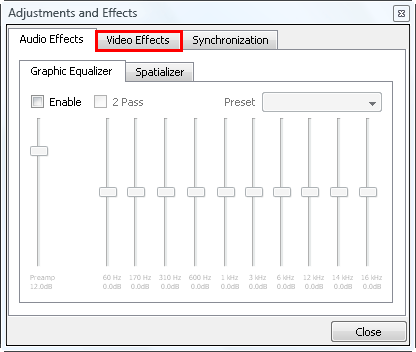
The default display is Audio Effects. Hit the Video Effects tab to proceed to the next step.

video effects

Under Video Effects, check the Transform checkbox.

rotate 180

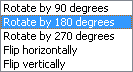
For this illustration, because we want to resolve the upside down video, we will select Rotate by 180 degrees.

You also have an option to rotate the file by 90 or 270 degrees, or flip it horizontally or vertically.

rotate modes

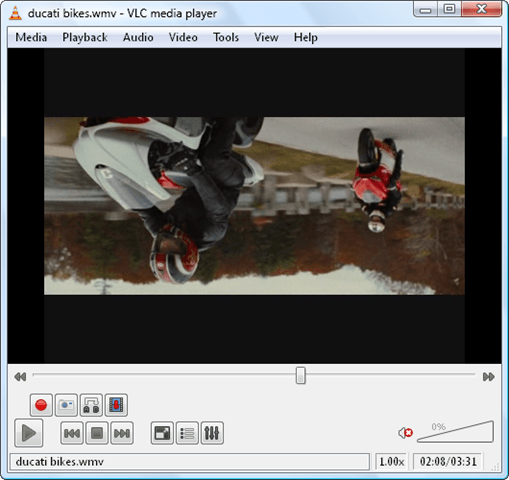
You will see the result immediately. This is the original video.

original video

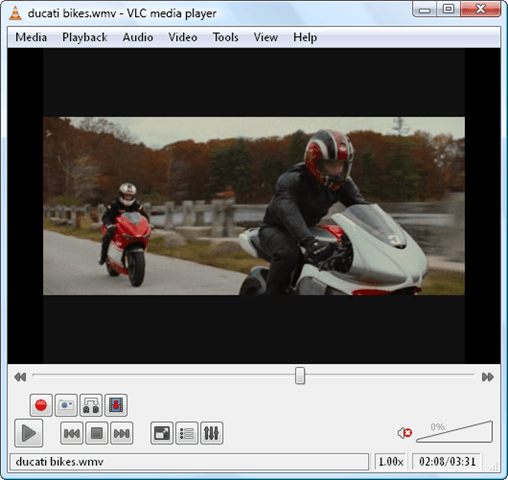
This is the resolved movie. After the fix, you can continue playing and watching the video.

rotated video

The other way of patching up upside down video using VLC is through the Geometry-Rotate feature.

To access this tool, you still have to click the same commands used in the first method. Go to Tools > Effects and Filters > Video Effects. Instead of going to Basic, browse to the Geometry tab.

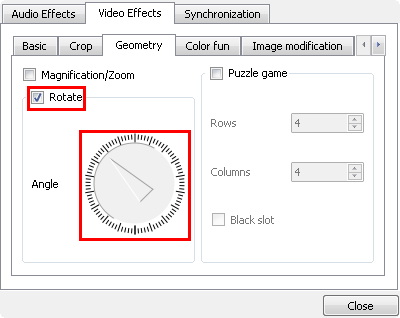
Next, check the Rotate checkbox. In here, you can see the Angle needle. This needle will be used to rotate the video according to your preferred angle.

rotate angle

This is the default angle of the video when you enable Geometry’s Rotate feature.

rotate video angle

Move the needle downwards to rotate the upside down movie by 180 degrees.

correct angle

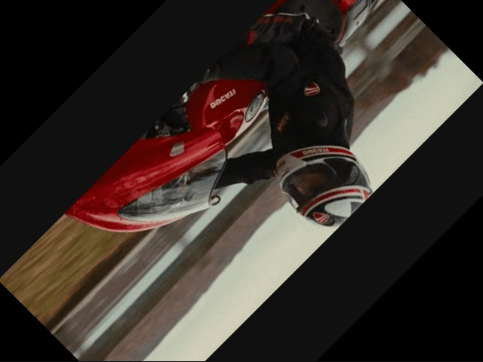
You can see the effect in real-time. This is the result file rotated by the Angle’s needle.

angle rotated

Remember though that VLC’s fix is not permanent. Once you close the file and play it again, you will still see the upside down video.

因行車記錄器位置的關係,影像上下顛倒,在win可用kmplayer,我在ubuntu下用vlc,原選工具Preference下的視訊 濾波器 的旋轉及轉換皆無效,看了上述才知應在工具Effects and Filter下選第2項(選單仍譯成 音訊效果),之後win也改回vlc。